Photo to crochet pattern · Free
Turn any photo or picture into a crochet pattern
Drop in a photo, pick colorwork, filet or C2C, and StitchOwl converts it into a crochet chart you can edit, with row-by-row written instructions.
Drop a photo here
JPG, PNG, GIF or WebP
Photos convert on your device and are never uploaded.
- in JPG, PNG, GIF or WebP
- Any photo
- stitches per chart, at most
- 200 × 200
- photos uploaded: it runs on your device
- 0
- chart and written instructions
- Free
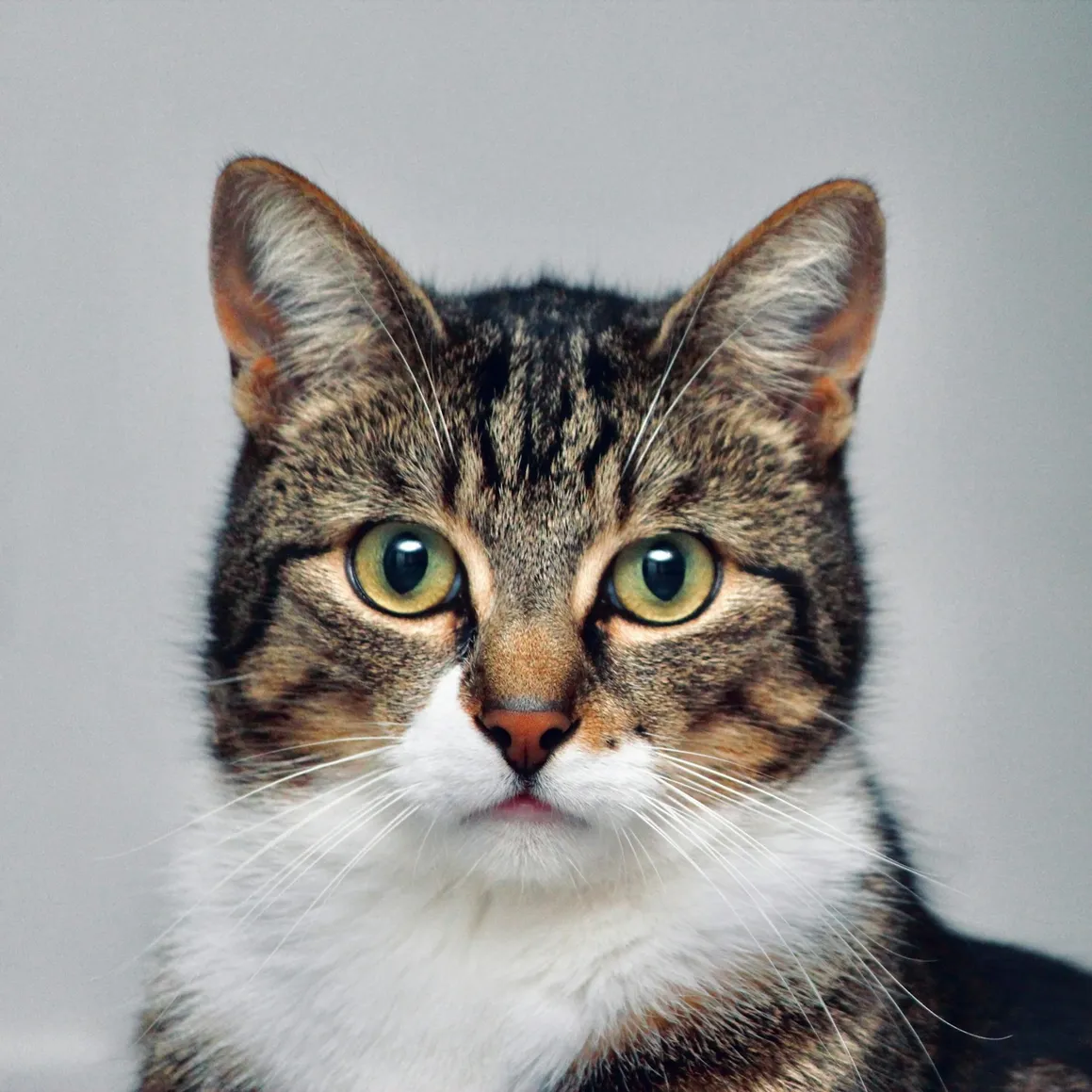
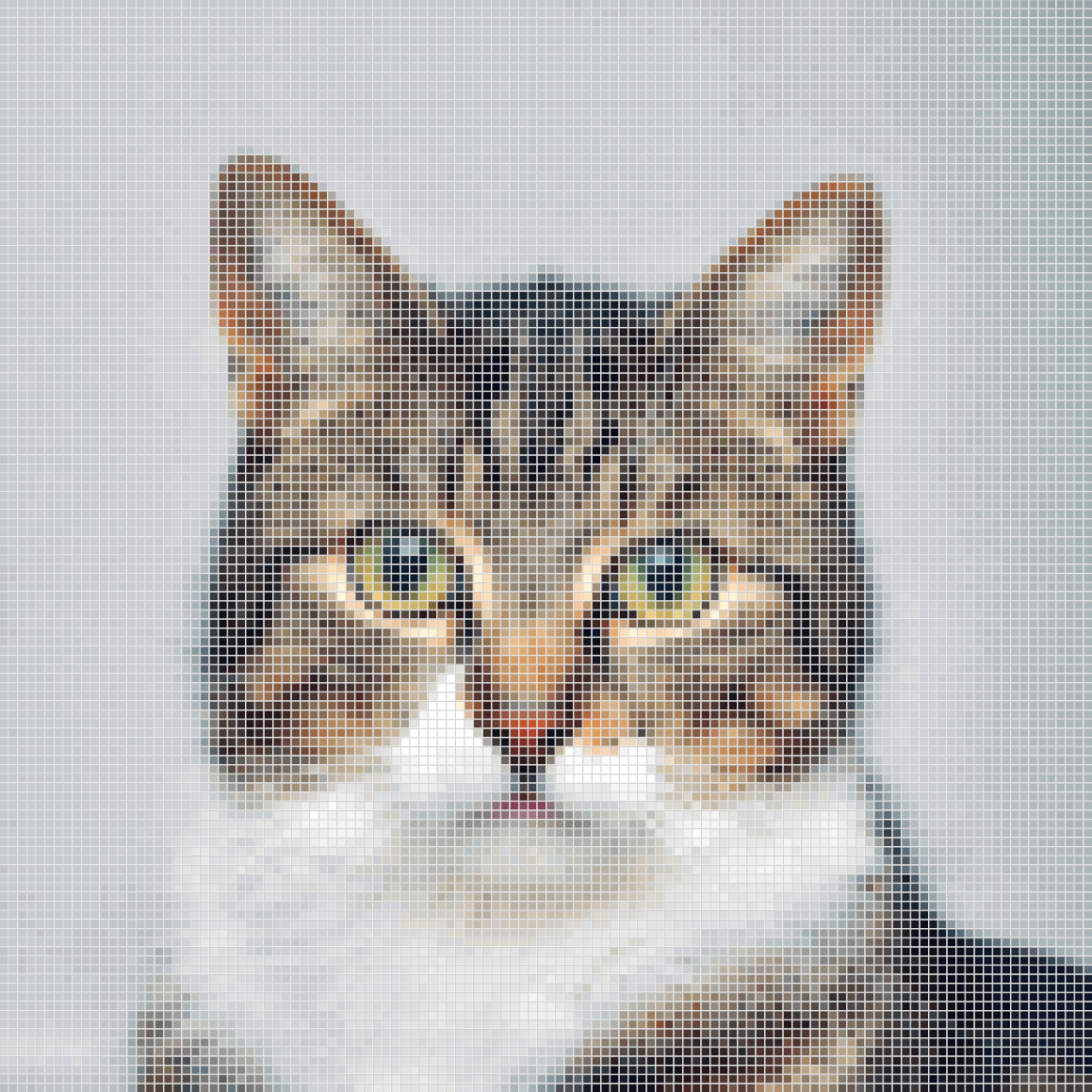
Example
See a picture become a chart
Inside the converter
What happens to your photo
1. Crop
Frame the part of the photo you want. A tighter crop puts more of your stitches on the subject.
2. Size and colors
Set the width and height in stitches, up to 200 × 200, optionally locked to your crop's proportions. Then choose how many colors: the converter picks them from the photo and shows how many stitches each one gets.
3. Fine-tune
Brightness, contrast and saturation change the photo before the colors are picked, which helps a dull or dark picture separate into clear areas.
4. Clean up confetti
The converter rates how many stray single stitches are left and can highlight them. Raise the cleanup strength to merge small specks into the colors around them.
5. Edit and crochet
The chart opens in the editor. Fix any square, choose how you work it, flat or in the round, and follow the written rows, ticking them off as you go.
Before you upload
Photos that make good crochet patterns
Strong contrast
A subject that stands out from its background keeps its outline. If it doesn't, raise the contrast in the converter.
A plain background
Busy backgrounds turn into confetti. Crop them out, or pick a photo taken against a wall, the sky or a plain surface.
One subject, cropped close
A face, a pet or a single flower fills the grid. A whole scene spreads its detail too thin to read in stitches.
Fewer colors
Every color is another yarn to carry or join. Start low and add colors only where the picture needs them.
Three crochet styles
Which style suits your photo?
Colorwork
Best for pets, portraits and full-color pictures
Every square keeps its own color, for tapestry, pixel and graphgan crochet. Each row lists its color runs.
Convert a photo to colorworkFilet
Best for silhouettes, lettering and logos
The photo becomes filled and open blocks, so the picture shows in the mesh. Shapes with a clear outline work best.
Convert a photo to filetC2C (corner to corner)
Best for blankets and other large pieces
Each square becomes one small block, worked in diagonal rows from one corner to the other. Instructions go diagonal by diagonal.
Convert a photo to C2C
Beyond the chart
Everything you need to finish the pattern
Written instructions
Every chart comes with row-by-row written instructions and a color legend with stitch counts.
Progress tracking
Mark each row as done while you work, and pick up right where you left off.
Gauge and finished size
Enter your gauge to see how big the finished piece will be before you start.
Exports with no watermark
Download your chart as a PDF, PNG, or SVG with a free account.
Yours to sell
Sell the charts, instructions, and exports you make with StitchOwl, including commercially.
Phone, tablet, or computer
The full editor runs in your browser on any device, including with Apple Pencil.
Questions
Photo to crochet pattern FAQ
Is the photo to crochet pattern converter free?
Yes. Converting a photo and getting the written instructions is free, with no sign-up. A free account saves up to 5 charts and lets you download them as PDF, PNG or SVG with no watermark.
Is my photo uploaded anywhere?
No. The conversion runs in your browser, so the photo never leaves your device. When you save, only the finished chart is stored, never the photo itself.
What kind of picture makes the best crochet pattern?
A JPG, PNG, GIF or WebP with one clear subject, strong contrast and a plain background. Pets, flowers, logos and simple drawings convert well. Busy scenes and low-light photos turn into many small specks of color.
How big should my crochet chart be?
Each square of the chart is one stitch, and a chart can be up to 200 × 200. More stitches keep more detail but take longer to crochet. Enter your gauge in the editor to see the finished size before you start.
How many colors should I use?
The converter starts at 8. Every color is another yarn to manage, so try fewer first and add more only if the picture loses detail. Filet always uses two: filled and open blocks.
What is confetti, and how do I get rid of it?
Confetti is single stitches or tiny groups of a color scattered through the chart, each one a yarn change for a single stitch. The converter shows how much of the chart is stray stitches and can highlight them. Raise the cleanup strength (up to 10) to merge small groups into the colors around them.
Can I turn a photo into a filet or C2C pattern?
Yes. Choose filet and the photo becomes filled and open blocks, which suits silhouettes with a clear outline. Choose C2C and each square becomes one block, with the instructions written diagonal by diagonal.
Can I edit the pattern after converting?
Yes. The chart opens in the editor, where you can recolor any square, add or remove rows and change the colors. The written instructions update as you edit.
Your photo, as a crochet pattern
Free with 5 saved charts and 50 colors per chart. Pro raises that to 250 charts and 200 colors. See pricing
What Should We Build Next? 🤔
Help us prioritize features by telling us what matters most to you. Or just give us feedback in general :)